> [!abstract] Summary
> Setup procedure for the **Prism Studio plugin** on the **OSMIUM** project (ARTFX), followed by quoted excerpts of the official documentation for reference. The Studio plugin manages users, roles, permissions and shared settings across multiple projects.
> [!warning] Plus-licence only
> The Studio plugin is **only available for the Plus licence** of Prism.
---
# OSMIUM — Studio Setup (step by step)
1. Install the **Studio plugin** from `Option / Hub`.
- ![[image-81.png]]
- *Note: Studio is only available for Plus licences.*
2. Make sure you have a **name set in Prism** (we'll use `prism studio`).
- ![[image-82.png]]
3. Go to `Options / Settings / Studio` and set the **studio path**.
- ![[image-83.png]]
4. Select the OSMIUM studio folder: `V:\OSMIUM\05_Studio`.
- ![[image-84.png]]
5. **Restart Prism** properly if it tells you that you have no rights to change the project.
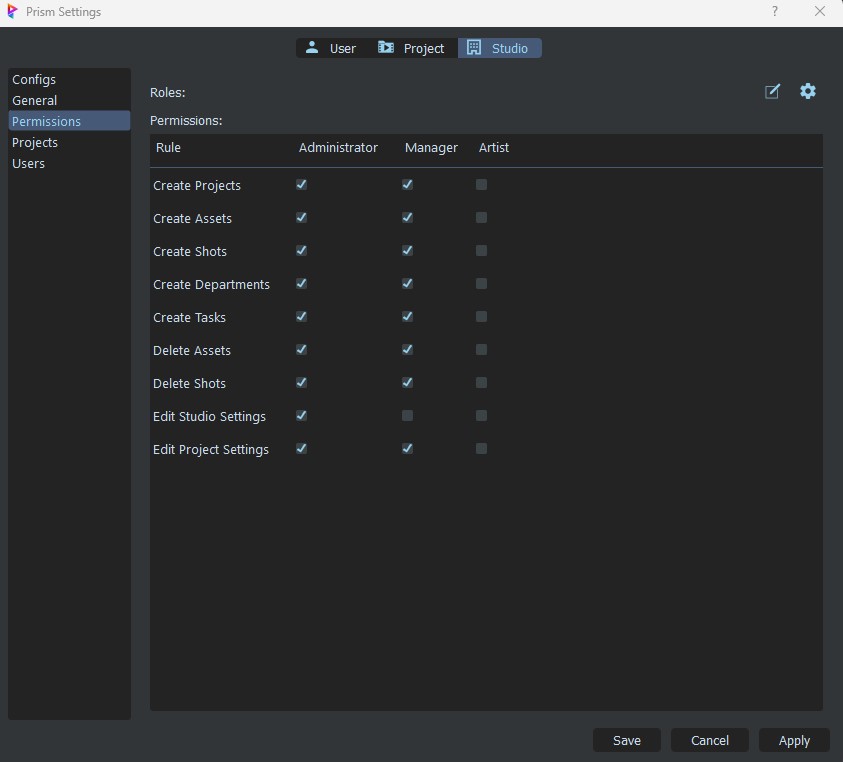
6. You will be set as a **Manager** by default — meaning you can change all variables. **Don't change them carelessly**, as the change applies to all groups.
- ![[image-85.png]]
---
# Official Studio Documentation
> [!info] Source
> [Prism Pipeline — Studio plugin documentation](https://prism-pipeline.com/docs/latest/plugins/Studio/) — quoted below for reference.
## Overview
The **Studio plugin** adds multiple new features to Prism, allowing studios and teams to manage users and settings across multiple projects.
Main features:
- Assigning users to projects.
- Marking projects as active or inactive.
- Managing roles and permissions for users.
- Applying Prism User Settings overrides studio-wide.
## Setup
Like any other Prism plugin, the Studio plugin can be installed from the **Prism Hub**.
Once the plugin is loaded, a new **Studio** tab is available in the Prism Settings window.
A new studio can be created by clicking **Set Studio Path…** — you will be prompted to select a studio folder. You can pick a new empty folder, or select an existing studio folder. This folder should be in a **central location with read access from all workstations** in the studio.
Once a folder is selected, additional studio settings appear in the Prism Settings.
To set the path to the studio folder on multiple workstations, you can use the environment variable:
```
PRISM_STUDIO_PATH
```
## Category — Configs
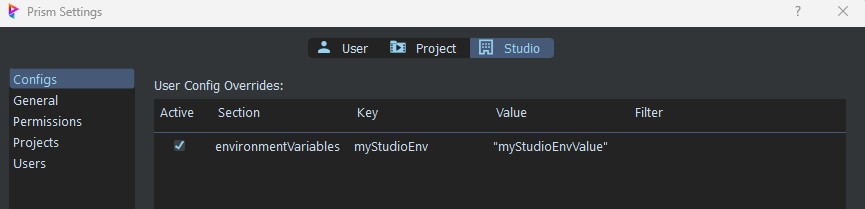
In the **Configs** tab, you can create **Prism user config overrides**. These overrides force specific settings stored in the Prism user preferences — allowing a studio admin to configure Prism for some or all users.
By default, the user settings config is saved at:
```
%userprofile%\Documents\Prism2\Prism.json
```
Overrides can be added/removed from the context menu.
- The **checkbox in the first column** defines if an override is active.
- The **section** and **key** columns define which setting is overridden. The key is optional.
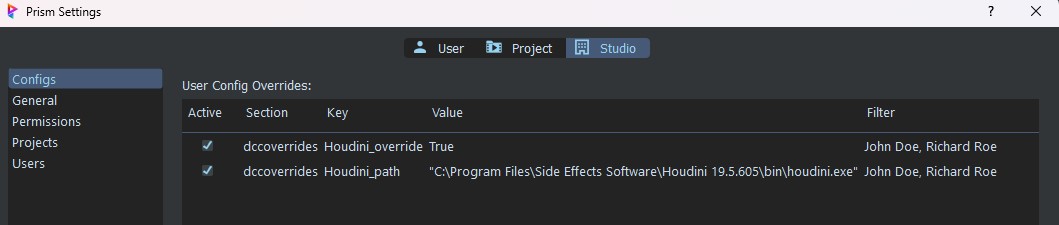
- The **value** is run through a Python `eval(value)` — so string values need quotation marks.
- The **filter** is an optional comma-separated list of Prism usernames. If empty, the override applies to all users.
**Examples** (from the official docs):
- To define an environment variable applied to all users in a studio:
- To define a Houdini executable for John Doe and Richard Roe:
## Category — General
Set the **path to the studio folder** and toggle the studio **active / inactive**. If inactive, the studio settings won't affect users.
## Category — Permissions
Add and remove **user roles**. Each user role has a column in the permissions table. Permissions can be added/removed to specific roles using the checkboxes.
## Category — Projects
Defines which projects are available in the studio.
- Create new projects, or add existing Prism projects.
- By default only **active** projects are displayed — toggle with the **Active Only** checkbox.
- Toggle a project active/inactive via the **Active** option in the context menu.
- Assign users or remove a project from the studio via the context menu.
## Category — Users
Add and remove users. Each user has a **role** (see Permissions above). Assign users to projects via context menu → **Assign Projects…**.
> [!warning] Username matching
> In order to apply permissions and assigned projects to a user, the **username in Studio Settings must match the username in the Prism User Settings (General category)**. Otherwise the user will have **no permissions and no projects** assigned.
Users see all their assigned projects:
- When opening Prism for the first time.
- When opening the project list in the Project Browser.
- Via the **Manage Projects…** button in the **Projects** category of User Settings.
## Known Limitation
> Same as the username-matching warning above — repeated by Prism documentation because it is the #1 cause of "Studio plugin doesn't work for user X".
---
# Improving Our Use of Prism
Ideas being explored to extend Prism in our studio workflow:
- **Deadline bot on Discord** — surface farm submissions / failures into the team chat.
- **ShapeFx Loki** — external layer management on top of Prism.
---
# 🔗 Related
- [[../PRISM MOC OSMIUM|ARTFX PRISM MOC]]
- [[PRISM PFE Project Creation|PRISM PFE Project Creation (video)]] — Plus-licence project setup.
- [[PRISM For Shot test|PRISM for PFE Shot work (video)]] — shot workflow.
- [[Folder Hierarchy for ARTFX VFX|Folder Hierarchy for ARTFX VFX]] — Permafrost folder variant.
- [[../../../PROTOCOL/PRISM/Notes/PRISM Installation and Overview|PRISM Installation and Overview]] — install Prism first (public).
- [[../../../PROTOCOL/PRISM/Notes/PRISM Folder Hierarchy|PRISM Folder Hierarchy]] — folder layout the Studio plugin operates on (public).
- External: [Prism Studio plugin docs](https://prism-pipeline.com/docs/latest/plugins/Studio/).