## Sidebar
## Render stats sidebar
In the [render gallery](https://www.sidefx.com/docs/houdini/ref/panes/rendergallery.html "The render gallery lets you snapshot the current view, so you can compare images and revert to when a snapshot was taken.") viewer, double click an image or on-going render in the render gallery to open it in the viewer, then click the  render stats icon to show the render stats sidebar.
You can also use the render stats sidebar in the [standalone image viewer (MPlay)](https://www.sidefx.com/docs/houdini/mplay/index.html "Using Houdini’s stand-alone image viewer.").
In the render stats sidebar, you can press ⌃ Ctrl + = and ⌃ Ctrl + - to zoom the size of the stats graphics. You can press ⌃ Ctrl + 0 to reset to the default zoom level.

## Command
This command lets you specify an EXR file rendered by Karma, and generate an HTML report showing the render statistics saved in the image file.
See [render statistics](https://www.sidefx.com/docs/houdini/solaris/stats.html "How to view various statistics about the render process of an on-going render or rendered image.") for more ways to view render statistics.
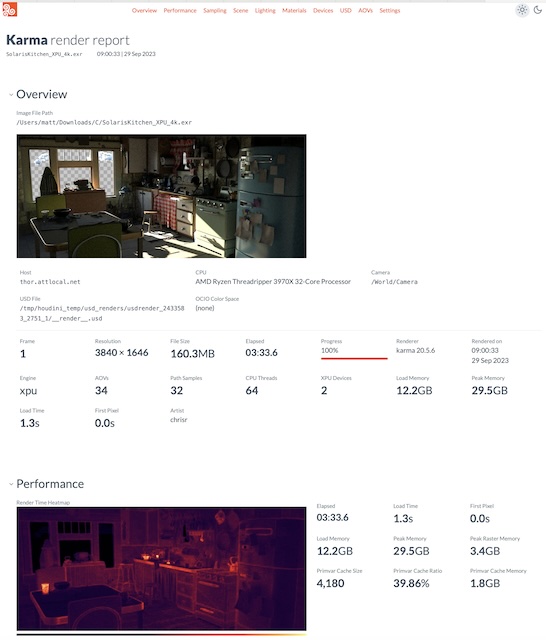
## Single vs. multi mode
The command has two modes for generating the output:
`--single` (the default) generates a single, self-contained HTML file, with the stylesheet, script, and all thumbnail images included inline. This is most convenient because it creates a single file that can be viewed anywhere, but it uses a bit more space because every report has its own copies of the resources and the images are base-64 encoded.
`--multi` generates an HTML file, and a directory of thumbnail images, and copies over the stylesheet and script as separate files. This may be useful if you generate a lot of reports and want to have them all reference the same shared resources.
## Tips and notes
- Images generated by Karma XPU are missing some statistics compared to Karma CPU.
- Where the command takes AOV names, you can also use numbers to specify the AOV index, for example `0` for the first AOV.
- You can customize the title and subtitle of the report with the `--title` and `--subtitle` options. This may be useful for displaying site-specific information.
- The template this command uses to generate the HTML is specific to render stats saved by Karma, and is not built to be customized (other than by the `--title` and `--subtitle` options). Future versions will probably modularize the template to be easier to modify and re-use.
## Usage
renderstatsreport [options] infile.exr [ outfile.html ]
- If you don’t specify an output file, the command creates an HTML file with the same name as the input file, in the same directory.
- If the second argument is an existing directory, the command creates an HTML file with the same name as the input, in that directory.
- In `--multi` mode, the command creates a
renderstatsreport example.exr ~/reports/example_report.html
## Options
### File options
`--create-dirs` / `--no-create-dirs`
`--single` / `--multi`
Whether to save a self-contained HTML file, or an HTML file and a directory of images (see [single vs. multi](https://www.sidefx.com/docs/houdini/ref/utils/renderstatsreport.html#single) above). The default is a single file.
### Thumbnail options
`-t ‹level›` / `--thumbnails ‹level›`
How to generate AOV thumbnails for the report. You can explicitly specify which AOVs get thumbnails with the `--include-aovs` and `--exclude-aovs` option.
`none`
Do not generate any AOV thumbnail images.
`diagnositc`
Only generate thumnails for the first AOV and heatmap AOVs.
`default`
Generate thumbnails for all AOVs except non-visual AOVs such as CryptoMatte data planes. This is the default.
`all`
Generate thumbnails for all AOVs.
`-s ‹size›` / `--thumbnail-size`
The width (in pixels) of the AOV thumbnails.
`-F png|jpg` / `--thumbnail-format png|jpg`
The image format to use for AOV thumbnails. The default is `jpg`. (Technically this can be any format the OIIO library can output, but it has to work in the browser.)
`-i ‹aov_names›` / `--include-aovs ‹aov_names›`
If you specify this option, the command will only generate thumbnails for the AOVs in this comma-separated list of names.
renderstatsreport example.exr -i C,directdiffuse,directemission
`-x ‹aov_names›` / `--exclude-aovs ‹aov_names›`
If you specify this option, the command generate thumbnails for the AOVs specified by the `--thumbnails` option, _except_ the AOVs in this comma-separated list of names.
`--thumbnail-dir ‹name›`
In `--multi` mode, the name of the directory to create (in the same directory as the HTML file) containing AOV thumbnail images. The default is `aov_thumbnails`.
`--color-space ‹name›`
Convert AOV thumbnails to this color space. The default is `sRGB`.
`-H ‹aov_names›` / `--heatmap-aovs ‹aov_names›`
For AOVs in this comma-separated list of names, the command generates the thumbnail using a false color gradient. You can specify the gradient using the `--colormap`` option.
renderstatsreport example.exr --heatmap-aovs loadtime,shadertime
`--colormap ‹name›`
The name of the color map to use for “heatmap” AOVs. Alternatively, this can be a comma-separated list of floating-point R,G,B triples. See the [oiiotool documentation](https://openimageio.readthedocs.io/en/latest/oiiotool.html#cmdoption-colormap) for the available values. The default is `magma`.
renderstatsreport example.exr --colormap plasma
renderstatsreport example.exr --colormap .25,.25,.25,0,.5,0,1,0,0
`--heatmap-scale ‹fraction›`
For “heatmap” AOVs, the command scales the brightness values by this fraction before applying the color map. The default is `0.9`.
renderstatsreport example.exr --heatmap-scale 1.0
### Template options
`--title ‹string›`
Use this string instead of the standard page title. This may be useful to add site-specific information to the report.
`--subtitle ‹string›`
Use this string instead of the standard subtitle. The subtitle sticks to the top of the browser view when the page scrolls. This may be useful to add site-specific information to the report.
`-r ‹dir›` / `--resources ‹dir›`
The directory where the command will get its CSS and Javascript files. The default is `$HFS/houdini/config/RenderReport`.
`-p ‹prefix›` / `--prefix ‹prefix›`
If you specify this option, the script does not copy resource files (such as stylesheets and scripts), and any links to resources in the report will be prefixed with this string. This may be useful if you keep the report on a web server, to have all reports link to the same resources on the server instead of having separate copies for each report.
renderstatsreport example.exr --prefix http://example.com/render-report/resources/